


VSee Clinic for Patient
4.5472.00 Reviews
App Specs
- Version
- 1.32.3-2151360-defbe2d
- Updated On
- License
- Free
- Downloads
- 500,000+
- Developer
- VSee Lab, Inc.
- Categories
- Medical
- Platform
- Android, iOS
Screenshots
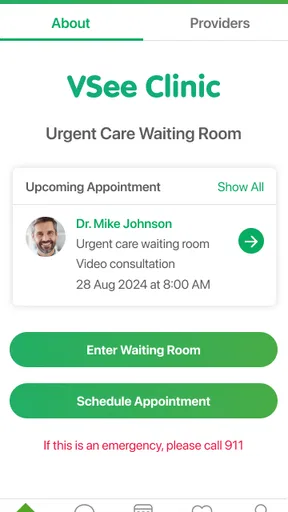
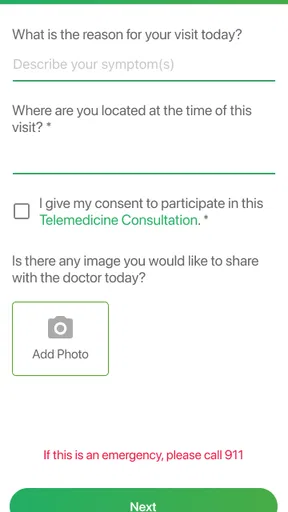
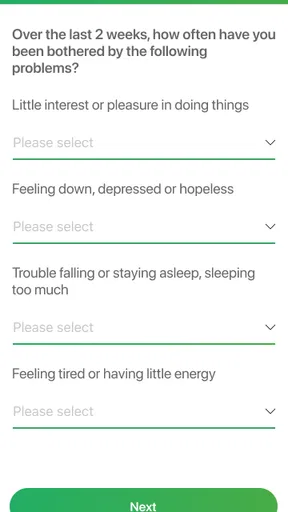
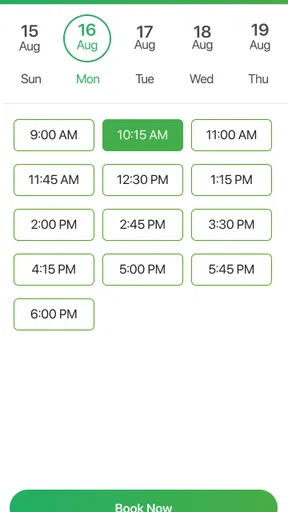
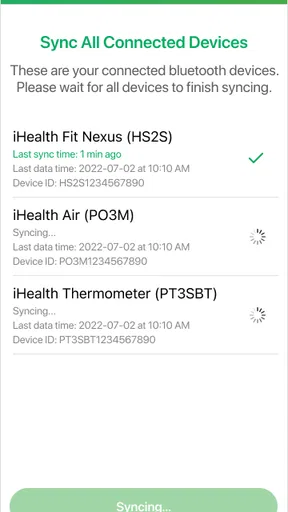
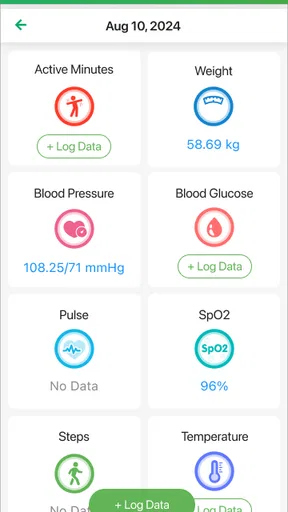

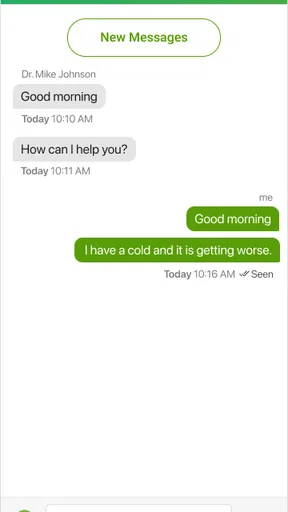
 Analysis by AppCompare
When a healthcare provider asks me to use a video consultation service, I want the process to feel calm rather than technical. VSee Clinic for Patient is built around that simple need: it gives patients a way to consult with their provider through a mobile app instead of treating the appointment like a complicated technology project. I found its Medical focus immediately clear, and the free price makes it easy to consider when a clinic already uses the VSee system.
My overall impression is practical rather than flashy. This is not an app I would install for browsing health articles, tracking daily habits, or replacing a medical professional. Its purpose is narrower and more useful: helping a patient join a remote consultation. That focus is a strength, especially for someone who wants fewer distractions before an appointment. It is also the reason some people may prefer another option if their provider uses a different telehealth platform.
How the everyday appointment workflow feels
The most important part of any patient-facing telehealth app is the path from receiving an appointment instruction to actually speaking with the provider. With VSee Clinic, I would treat the app as one part of that process rather than assuming it independently schedules every aspect of care. The clinic or provider remains central, so the first practical step is to follow the instructions supplied by that healthcare service and make sure the appointment details match.
Before the visit, I would install the app on the phone or tablet I plan to use, open it early, and avoid waiting until the appointment minute to discover a problem. That small habit matters more here than exploring every screen. A remote consultation can be interrupted by a weak connection, a low battery, an unavailable microphone, or a camera that has not been allowed to operate. Checking those basics in advance makes the actual visit less stressful.
A realistic example would be a follow-up appointment during a workday. I might move to a quiet room, place the phone on a stable surface, keep my medication list nearby, and enter the clinic session from the provider’s instructions. If the consultation includes questions about symptoms, I can concentrate on the conversation instead of holding the device in my hand and searching for information at the same time. That is where the app’s straightforward approach makes sense: it supports the appointment instead of competing with it.
I also like the idea of separating the technical preparation from the medical conversation. I would test the device, close unrelated apps, connect to a dependable network, and then keep notes ready. The application cannot make a poor internet connection reliable, and it cannot replace preparation for the appointment. It can, however, reduce the number of moving parts compared with trying to improvise a video call through a general-purpose messaging app.
For a first-time user, the key question is usually whether a separate account, invitation, or clinic-specific process is required. The answer depends on how the provider has arranged the consultation, so I would read the clinic’s message carefully rather than guessing. If the provider has not explained how patients should enter the visit, contacting the clinic is more useful than repeatedly reinstalling the app. The software is a doorway to care, not the source of the appointment itself.
Worth Reading Before You Choose

EA SPORTS FC Mobile 26 Is a Bigger Football Game, but It Takes Time

Flipboard Shows What News Apps Must Do Beyond the Feed

Switching to Android Auto Means Rethinking Your Driving Routine

Google Calendar Makes a Crowded Week Easier to Manage

Ludo King Makes the Most of the Minutes Between Plans

Baby Panda World Brings Quick Play to Modern Phones, but Its Game Library Feels Busy
VSee Lab, Inc. develops the app, and its role is clearly connected to provider-led consultations. That distinction is important. I would not expect it to function like a general doctor-search service or an independent emergency channel. Someone with urgent or life-threatening symptoms should use the appropriate emergency service instead of waiting for a video appointment to load. For ordinary scheduled care, though, a dedicated clinic app can be a sensible middle ground between visiting in person and using an unsuitable consumer chat tool.
Small preparation habits that prevent avoidable trouble
My preferred routine is deliberately boring. I charge the device, use headphones only if I know they work well, place the camera at eye level, and choose a room with enough light on my face. I keep the provider’s message open or saved somewhere accessible before launching the consultation. These are not special functions of VSee Clinic, but they are the habits that make the app more useful in practice.
I would also avoid switching between the consultation and other apps unless necessary. On a phone, multitasking can make it easier to lose track of the session or accidentally change the audio source. If I need to show a document, prescription label, or visible symptom, I would first ask the provider whether that is helpful and whether the image can be seen clearly. A video call is not automatically a good substitute for a properly captured clinical image.
Another useful habit is writing down the main questions before joining. Telehealth appointments can feel shorter because there is no waiting-room transition and because the patient is managing the device at the same time. A short list helps me use the conversation well. I would include changes since the last visit, current medicines, side effects, and the specific decision I need help making.
Settings worth checking before the consultation
The settings I would prioritize are the practical ones: camera access, microphone access, notifications, sound level, and network choice. Permissions are especially important because a video consultation cannot work normally if the app cannot use the camera or microphone. I would check these from the device settings before the appointment, not while the provider is already waiting.
Notifications deserve a quick review too. I would not want an incoming call or a stream of unrelated alerts to distract me during a medical discussion. At the same time, I would avoid disabling every notification without thinking, because the clinic may use a device alert as part of its appointment flow. The sensible approach is to reduce interruptions while keeping the communication channel the provider expects available.
Audio is often more important than picture quality. If the connection becomes unstable, I would rather preserve clear speech than obsess over a perfect image. Headphones can help in a noisy home, but they introduce another possible failure point: Bluetooth pairing, low battery, or the wrong input being selected. For that reason, I would test headphones before the appointment and keep the device’s built-in microphone as a fallback.
Privacy settings are worth considering in the room as well as on the phone. I would choose a private location, avoid placing confidential papers in view of the camera, and make sure other people cannot overhear the conversation unless the patient wants them present. The app is designed as a secure way to consult with a provider, but secure software does not make an exposed room private. Good use still depends on the patient’s surroundings and device habits.
The application supports an Everyone content rating, which makes its intended audience broad from an app-store perspective. That should not be confused with clinical suitability for every situation. A child, older adult, or person with accessibility needs may still require help positioning the device, hearing the provider, or following the clinic’s instructions. I would arrange that assistance beforehand while preserving the patient’s privacy and control over the appointment.
Compatibility is another point I would check before relying on it. The listed minimum operating system is version ten, so I would confirm that the device meets that requirement and has enough practical battery life for the visit. A phone that technically installs the app but struggles with updates, storage, or an aging battery may not be the best consultation device. In that case, a newer supported phone or tablet could be a better choice than troubleshooting during the appointment.
Faster patterns for repeat visits
Experienced users do not necessarily use more features; they remove repeated decisions. For recurring appointments, I would keep one small preparation checklist: device charged, operating system ready, camera and microphone available, provider instructions located, and questions written down. Repeating the same sequence makes the consultation feel predictable and reduces the temptation to test unfamiliar settings at the last moment.
I would also choose one reliable location for visits. A stable surface, consistent lighting, and a known network can save more time than searching through the app for a shortcut. If I usually attend appointments from home, I might keep a charger and headphones in that room. If I join from work, I would reserve a private space and check whether the workplace network handles video calls properly.
For families, the best workflow is to clarify who owns the appointment details and who will operate the device. A parent helping a child, or an adult helping an older relative, can prepare the camera and audio while allowing the patient to speak directly with the provider. That division prevents the helper from becoming the accidental focus of the visit. It also makes it easier to notice when the patient needs to answer privately.
When a connection fails, I would follow a simple escalation pattern instead of repeating the same action. First, I would check whether the device still shows an active network connection and whether the microphone or camera has been disabled. Then I would rejoin using the provider’s original instructions. If the problem continues, I would contact the clinic through its normal channel, because the clinic may have a different fallback process. This is more realistic than assuming the app alone can diagnose every technical or scheduling issue.
One trade-off is that a dedicated healthcare application may feel less familiar than a general video-calling app. A patient who already knows another platform may find the separate workflow slightly slower at first. The benefit is that the consultation remains tied to the provider’s chosen environment rather than being mixed with personal calls and messages. For repeated care with a participating provider, that trade-off can be worthwhile.
Where the app reaches its limits
VSee Clinic is not the right tool for every medical need. A video consultation cannot provide a physical examination that requires touch, imaging equipment, laboratory work, or immediate intervention. It may be useful for follow-ups, discussions, routine questions, and situations where the provider has already decided that remote care is appropriate. It is a poor substitute when the clinician needs information that a phone camera and conversation cannot supply.
I would also skip it as a first choice if my provider does not use VSee Clinic. The app cannot create a relationship with a clinic that has not adopted its workflow, and installing it without provider instructions may lead nowhere. In that situation, the provider’s own patient portal, another requested telehealth service, or an in-person visit would be more appropriate.
People who dislike troubleshooting may need a little support. The app is described as simple, but “simple” does not eliminate device permissions, network quality, camera placement, or clinic-specific instructions. An older phone, restricted work device, or unreliable home connection can turn a short appointment into a frustrating session. I would choose another arrangement when the patient cannot reasonably manage those conditions and no helper is available.
The app’s free price is helpful for patients deciding whether to install it, but it does not mean the medical consultation itself is automatically free. The software and the healthcare service are separate matters. I would confirm appointment costs, insurance handling, and cancellation rules with the provider rather than making assumptions from the app’s price. That distinction prevents an unpleasant surprise after an otherwise smooth technical experience.
Its public reception is encouraging, with an average rating of 4.5 from around 1.6 thousand ratings, and the app has passed the half-million-install mark. Those figures suggest that many people have found the basic patient workflow usable, but they do not guarantee a perfect experience for every clinic or device. Telehealth quality depends heavily on the provider’s setup, the patient’s connection, and how clearly the appointment instructions are written.
The current version is 1.32.3-2151360-defbe2d. I would keep the app updated through the normal device store process, especially before an important appointment, while avoiding an update immediately before joining if I have no time to test the result. A stable routine is more valuable than chasing changes on the day of a consultation.
My verdict after looking at the complete workflow
I see VSee Clinic as a focused tool for patients whose healthcare provider already relies on it. Its strongest quality is not a long feature list; it is the way a dedicated consultation app can give a scheduled medical conversation its own clear place on a phone. The free access, broad Everyone rating, and simple purpose make it approachable for many patients, while the provider-led design keeps expectations grounded.
I would recommend it to someone who has received clear clinic instructions and wants a straightforward way to attend a remote visit. I would especially recommend building the small habits around it: prepare the device early, check permissions, use a private and well-lit room, keep questions ready, and know how to contact the clinic if the connection fails. Those habits turn a merely installed app into a dependable part of the care routine.
I would be more cautious for emergency symptoms, examinations that require hands-on assessment, patients with unsupported or unreliable devices, and anyone whose provider uses a different platform. In those cases, another route is better, whether that means urgent care, an in-person appointment, a patient portal, or the telehealth system specifically chosen by the clinic.
After repeated use, the app’s value comes from consistency. I would not expect it to replace every healthcare interaction, but I would trust it as a practical bridge for suitable appointments when the provider has organized the visit around it. My recommendation is simple: use it when it is part of your provider’s care workflow, prepare the surrounding routine carefully, and judge it by how smoothly it helps you reach the right professional.
For that specific job, VSee Clinic for Patient earns a positive opinion from me. It is best understood not as a complete healthcare destination, but as a patient-facing connection point. Used with realistic expectations and a repeatable setup, it can make remote consultations feel less intimidating and more manageable.
Pros
- Easy access to scheduled video appointments from a smartphone or tablet.
- Secure login and encrypted visits help protect sensitive health information.
- Appointment reminders can help patients avoid missing scheduled consultations.
- Supports communication with healthcare providers without traveling to a clinic.
- Useful for follow-ups when an in-person examination is not required.
Cons
- Availability depends on whether your healthcare provider uses the VSee platform.
- A stable internet connection is required for reliable video consultations.
- Some medical issues still require an in-person examination or testing.
- Older devices may provide a less smooth video and audio experience.
- Setup may feel confusing for patients unfamiliar with telehealth apps.
FAQs for VSee Clinic for Patient
What is VSee Clinic for Patient, and what can I use it for?
VSee Clinic for Patient is a telehealth application that allows patients to connect with participating healthcare providers through a smartphone, tablet, or supported web browser. Depending on the clinic, you may use it for video consultations, virtual waiting rooms, messaging, appointment access, and sharing basic information with your care team. Available services can vary by provider and location.
Do I need an account or an invitation from my healthcare provider to use VSee Clinic?
In most cases, you need access details supplied by the healthcare organization using VSee Clinic. This may be an invitation link, clinic URL, appointment message, or login credentials. Some providers allow patients to enter a virtual waiting room without creating a traditional account, while others require registration and identity verification. Follow your clinic’s instructions carefully.
What equipment and internet connection are required for a VSee Clinic visit?
You generally need a compatible Android or iOS device, a working front-facing camera, a microphone, speakers or headphones, and a stable internet connection. Wi-Fi or a strong mobile data signal is recommended for video calls. Before your appointment, allow camera and microphone permissions, charge your device, and test your connection in a quiet, well-lit location.
Can VSee Clinic replace an in-person doctor’s appointment or provide emergency care?
VSee Clinic is designed for remote consultations, but it does not replace every in-person medical visit. Your provider may still need to examine you physically, perform tests, or arrange follow-up care at a clinic. The app should not be used for emergencies. If you have severe symptoms or believe you are in immediate danger, contact local emergency services or go to the nearest emergency department.
Is VSee Clinic secure, and what should I know about privacy?
VSee Clinic is built for healthcare communication and typically uses security measures intended to protect telehealth sessions and patient information. However, privacy also depends on your device, network, account settings, and the healthcare organization operating the service. Avoid public Wi-Fi when possible, keep the app updated, use a private room, and do not share appointment links or login details with others.


